OPC UA Simulator
One or more OPC UA servers on your own machine, each with its endpoint, security modes and sign-in rules, and an address space of folders and variables with live values. This is the simulator's user guide.
What the simulator does
The simulator makes your PC behave like one or more OPC UA servers, so an OPC UA client — a SCADA system, a gateway, an MES connector or your own code — can be developed and tested before the real server exists, or after it has gone back to the customer.
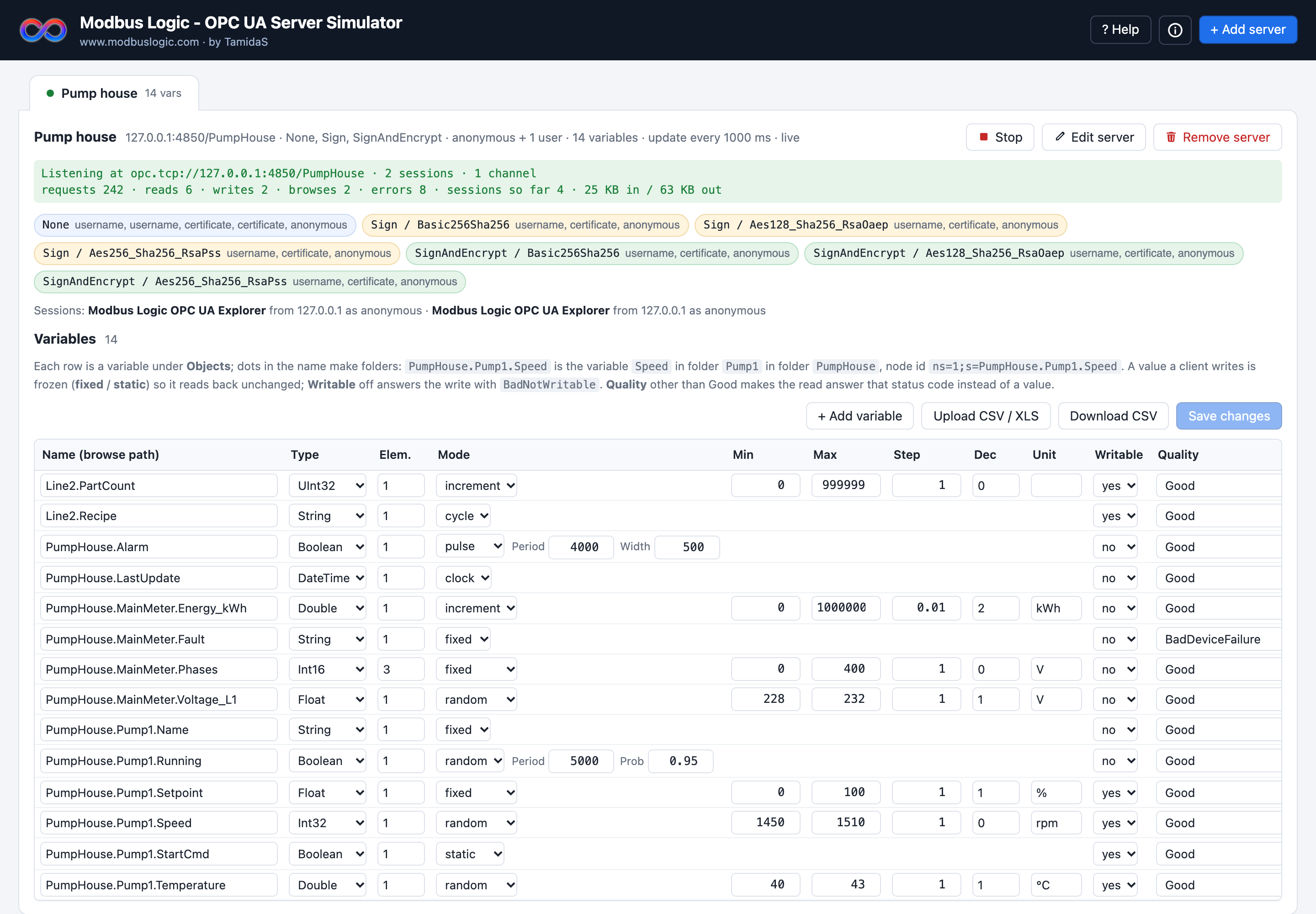
- Standards-compliant servers. The OPC UA side is the open-source
node-opcuastack, so a client sees a real server: GetEndpoints, FindServers, secure channels, sessions, Browse, Read, Write and subscriptions. - Any number of servers. Each has its own endpoint
opc.tcp://host:port/path, security modes, sign-in rules and identity. Each appears as a tab. - Security as in the field. None, Sign and SignAndEncrypt endpoints with a self-signed server certificate made on first start; anonymous sessions allowed or refused; user name and password checked against the users you enter.
- An address space from a table. Dotted names become folders and variables under
Objects. Boolean to Double, String and DateTime, scalar or array, each with a description, unit, writable or read-only access and a status code. - Live values. Fixed, random between limits, incrementing, toggling or pulsed booleans, strings cycling through a list, a DateTime following the clock. Changes to the table apply to the running server at once.
- Full visibility. Every service call is logged with the client address, the service, the nodes touched and the result.
Getting started
- Start the simulator. On Windows, run
tamidas-opcua-simulator.exe: on the first start it unpacks itself into your application-data folder, then opens the web UI in your browser athttp://localhost:8083. The window it runs in can stay minimised. - Press + Add server, give it a name, keep port
4840(the OPC UA default) or choose another, and press Save. The server starts and its tab opens with the endpoint it serves. - Press Upload CSV / XLS and take the sample file offered in the dialog: a pump house with a pump, a meter, an array, a variable that answers a bad status, and a clock. Fourteen variables appear and their values start moving.
- Point your client at the endpoint shown on the tab, for example
opc.tcp://192.168.1.20:4840/Simulator, browseObjectsand readPumpHouse.Pump1.Speed. Every call appears in the request log at the foot of the page.
data folder next to it, or in your application-data folder when that is not writable (section 12).How a client talks to the simulator
An OPC UA client finds a server by its endpoint URL, agrees on security, opens a session and then browses, reads, writes or subscribes. The simulator answers every step like a real server does.
| Step | What happens in the simulator |
|---|---|
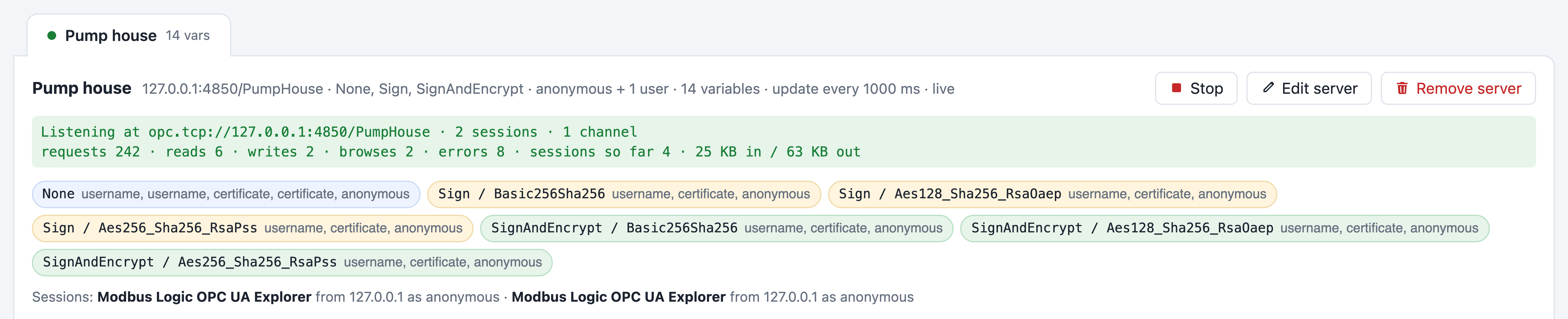
| GetEndpoints | The client asks what the server offers at opc.tcp://host:port/path: one endpoint per security mode and policy the server was given (section 4.3), each listing the sign-in tokens it accepts. The tab shows the same list. |
| Secure channel | With Sign or SignAndEncrypt the client checks the server's certificate and presents its own; the simulator accepts client certificates automatically. With None nothing is signed or encrypted. |
| Session | The client signs in: anonymously, when the server allows it, or with a user name and password that must match one of the server's users. Open sessions are listed on the tab with the client's application name and address. |
| Browse | The client walks the address space from Objects down: the folders and variables the table defines, with their node ids ns=1;s=<name>. |
| Read | The current value, data type, timestamp and status of a variable. A variable with a Bad quality answers that status instead of a value. |
| Write | Accepted on a writable variable of the right type, and the value is then frozen so it reads back unchanged; refused with BadNotWritable or BadTypeMismatch otherwise (section 7). |
| Subscribe | CreateSubscription, CreateMonitoredItems and Publish work as on any server: the client receives the moving values at its sampling interval. |
Inside the simulator, each server is one node-opcua server instance built from the variable table of its tab. The simulation updates the values on the server's update interval (section 4.5), and a change you make to the table — a new variable, a removed one, a different mode — is applied to the running server without a restart.
Servers
A server is one simulated OPC UA server. Every server appears as a tab named after it, with its endpoint, status and sessions above its variable table.
Adding a server
Press + Add server. A panel slides in from the right.
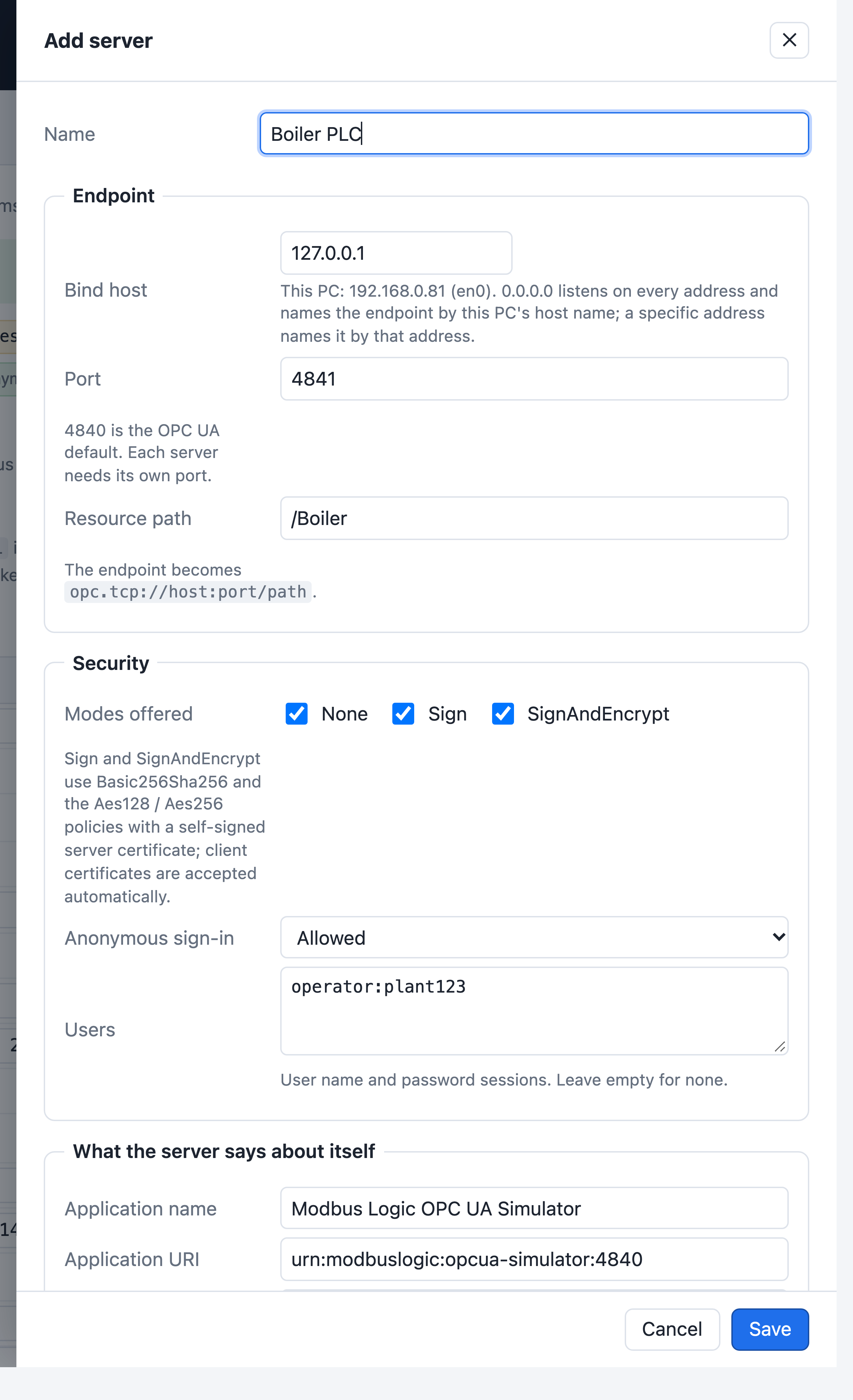
Press Save. The server is created, started, and its tab opens. If it could not start — for example the port is in use — the server is still created and the reason is shown on the tab; fix the setting with Edit and start it again.
Endpoint
| Field | Meaning |
|---|---|
| Name | Shown on the tab. Anything you like, for example the device or PLC the server stands in for. |
| Bind host | The address the server listens on. 0.0.0.0 listens on every address of the PC; the list offers the PC's own addresses, and one of them is what a client on the network enters. 127.0.0.1 keeps the server reachable from this PC only. |
| Port | 4840 is the OPC UA default. Each server needs its own port on the same bind host. |
| Resource path | The last part of the endpoint URL, so the endpoint becomes opc.tcp://host:port/path. |
Security and sign-in
| Field | Meaning |
|---|---|
| Modes offered | None, Sign and SignAndEncrypt, any combination. Sign and SignAndEncrypt are offered with the Basic256Sha256, Aes128_Sha256_RsaOaep and Aes256_Sha256_RsaPss policies, so a client sees one endpoint per mode and policy. The server's self-signed certificate is made on first start and kept under data/pki; client certificates are accepted automatically. |
| Anonymous sign-in | Allowed: a client may open a session without a user name. Refused: every session needs one of the users below. |
| Users | user:password, one per line. A session with a user name and password is accepted only when it matches a line here. |
What the server says about itself
Application name, application URI, product name, manufacturer and software version are what the server reports in GetEndpoints and FindServers and what a client shows in its server list. Fill them in to mimic a particular vendor's server, or leave the defaults.
Start, stop, edit, remove
Stop closes the server's sessions and port; Start brings it back with the same table. Edit opens the panel again; saving restarts the server when the endpoint or security changed. Remove deletes the server and its variables. Servers run independently: one can be stopped while the others answer.
Simulation
Update interval (ms) is how often the random, incrementing and toggling values of this server change, 1000 ms by default. A client that subscribes with a shorter sampling interval sees the same value repeated until the next update.
The address space
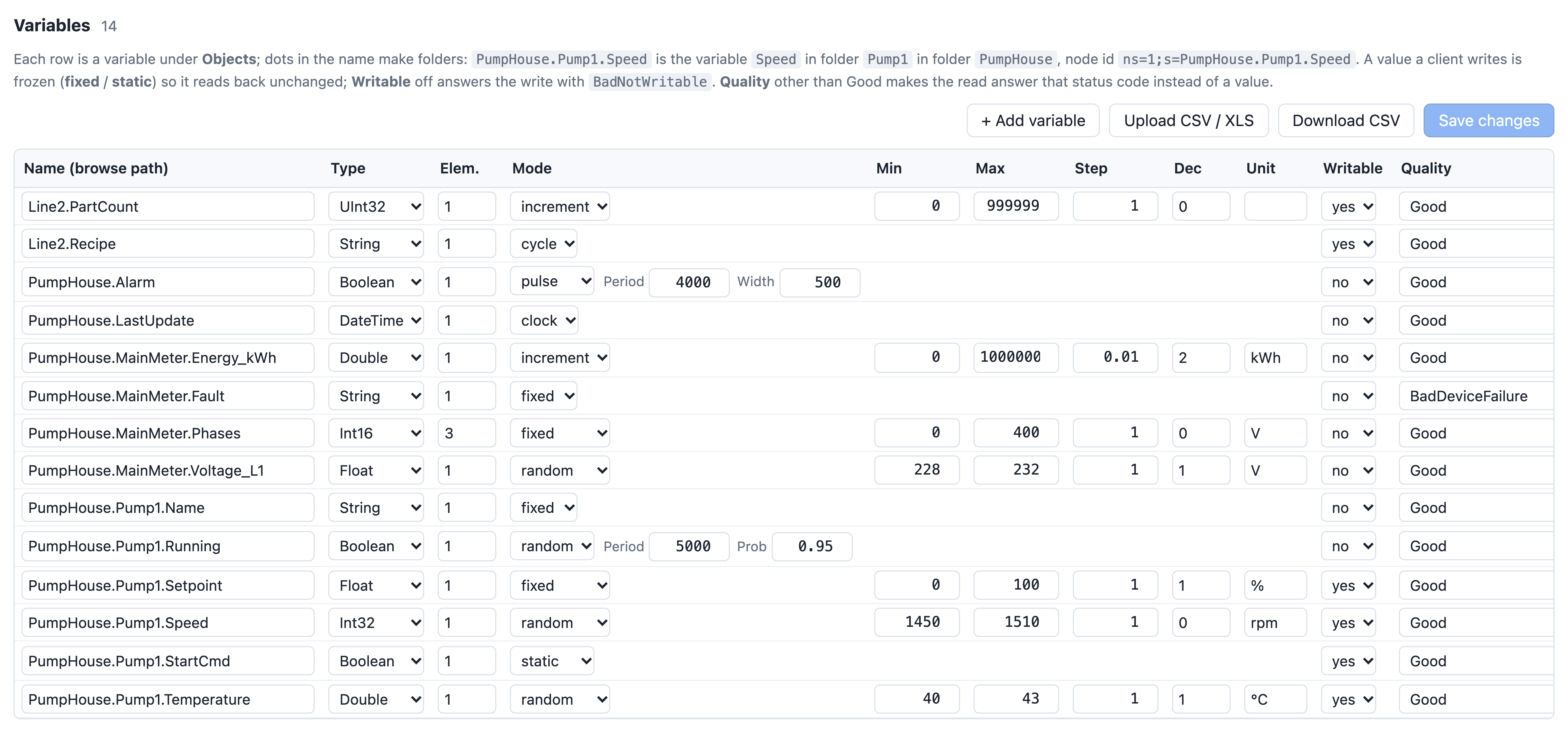
The variable table of a tab is the server's address space under Objects. Each row is one variable; the dots in its name are the folders above it.
| Column | Meaning |
|---|---|
| Name (browse path) | Dotted: PumpHouse.Pump1.Speed is the variable Speed in folder Pump1 in folder PumpHouse. The node id is ns=1;s=PumpHouse.Pump1.Speed. A name cannot be both a folder and a variable. |
| Type | Boolean, SByte, Byte, Int16, UInt16, Int32, UInt32, Int64, UInt64, Float, Double, String or DateTime. The import also accepts PLC names such as DINT, REAL and BOOL. |
| Elem. | 1 for a scalar; more for an array of that many elements, whose values are given comma-separated. |
| Mode, Min, Max, Step, Dec | How the value behaves (section 6), its limits, its increment and the decimals of a Float or Double. |
| Unit, Description | Reported to the client as the variable's engineering unit and description. |
| Writable | Yes: a client may write it (section 7). No: the access level is read-only and a write is refused. |
| Quality | The status a read answers: Good, Uncertain, or a Bad code such as BadDeviceFailure, which is answered instead of a value. |
| Value | The fixed or starting value; for an array, the elements comma-separated. |
Press + Add variable for a new row, edit cells in place, and press Save changes: the running server takes the new table at once, and a browsing client sees the variable appear or disappear. Download CSV exports the table in the import format.
Live values
The Mode column says how a value moves on the server's update interval.
| Mode | For | Behaviour |
|---|---|---|
| fixed | any type | Stays at Value. |
| random | numbers | A new value between Min and Max on every update, rounded to Dec decimals. |
| increment | numbers | Grows by Step on every update, from Min to Max — a counter, an energy total. |
| static, toggle, random, pulse | Boolean | Static stays as set; toggle flips every Period ms; random is true with probability Prob, re-drawn every Period ms; pulse is true for Width ms every Period ms. |
| cycle | String | Steps through the comma-separated Value list, one entry per update. |
| clock | DateTime | The PC's time at each update. |
The sample table shows one of each: a random pump speed and temperature, an incrementing energy total, a toggling run feedback, a pulsed alarm, a cycling recipe name and a clock.
Writes from a client
A client may write a variable whose Writable column is Yes, with a value of the variable's own data type. The simulator then freezes that variable: it keeps the written value and stops simulating it, so the client reads back exactly what it wrote — the way a setpoint or a command bit behaves on a real server. Edit the row and save to resume simulation.
| Write | Answer |
|---|---|
| Right type, writable variable | Good; the value is frozen. |
| Read-only variable | BadNotWritable |
| Wrong data type | BadTypeMismatch |
Every write, accepted or refused, is in the request log with its result.
Importing a variable table
Press Upload CSV / XLS and drop a .csv, .xls or .xlsx file, or browse for one. Replace current table starts from the file; Append adds its rows to the table.
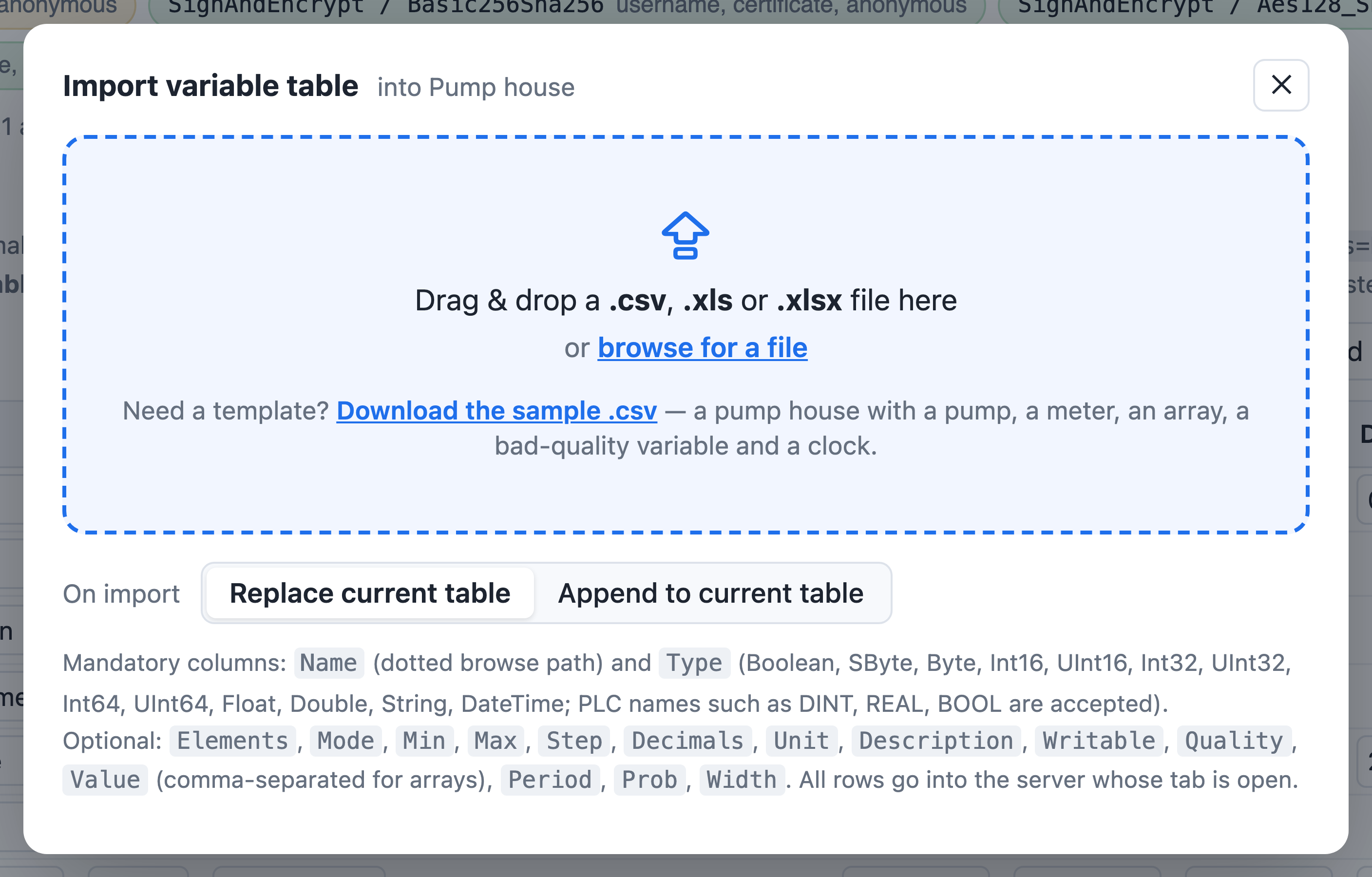
Mandatory columns: Name (the dotted browse path) and Type (OPC UA names, or PLC names such as DINT, REAL, BOOL). Optional: Elements, Mode, Min, Max, Step, Decimals, Unit, Description, Writable, Quality, Value (comma-separated for arrays), Period, Prob, Width. Column names are matched by name, in any order. A row the importer cannot use — an unknown type, a name that would be both folder and variable — is skipped and listed with the reason; the others are imported.
Request log
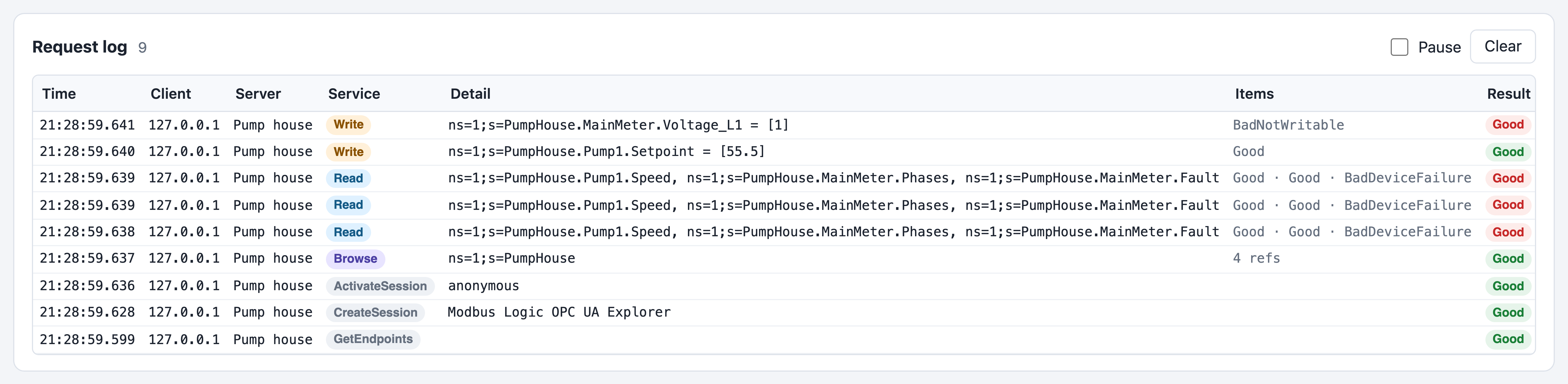
Every service call to every server is logged: the time, the client's address, the server, the service (OpenSecureChannel, CreateSession, ActivateSession, Browse, Read, Write, CreateSubscription, Publish and the rest), a detail such as the nodes touched, how many items, the result and the time it took. Pause stops the list moving while you read it; Clear empties it. The last entries are kept while the simulator runs; they are not written to disk.
What is not simulated
- Methods, events and alarms, and history (HistoryRead).
- Custom structured data types, and any vendor's information model.
- Redundancy and registration with a discovery server.
A client that needs one of these will find it missing, as it would on a server that does not implement it; the request log shows the refused service.
Testing with a client
- Modbus Logic OPC UA Explorer finds the simulated servers on this PC and the network, shows their endpoints as GetEndpoints reports them, and scans the address space with every variable's value, type, access and status. It is the client the simulator's own tests run with.
- Modbus Logic Edge Software: add an OPC UA Client node, enter the endpoint and the node ids (
ns=1;s=PumpHouse.Pump1.Speed), and the gateway polls the simulator like a PLC. Mark variables writable to test writes from the gateway. - Any other OPC UA client works the same way. A client that verifies server certificates will ask once to trust the simulator's self-signed certificate; a client that presents its own certificate is accepted automatically.
Command line and data folder
| Setting | Meaning |
|---|---|
PORT=9000 | The port of the web UI (default 8083), as an environment variable. |
OPCUA_SIM_DATA=<folder> | Where the settings, the variable tables and the certificates are kept (config.json, tags.json, pki/). |
--no-open | Do not open the browser on start; the web UI's address is printed instead. |
Without OPCUA_SIM_DATA the data folder is data next to the executable, or the user's application-data folder when that is not writable. On first start the executable unpacks itself into %LOCALAPPDATA%\TamidaS\OpcUaSimulator on Windows, ~/Library/Application Support/TamidaS/OpcUaSimulator on macOS and ~/.local/share/tamidas/opcua-simulator on Linux. Delete that folder to start clean.
Troubleshooting
| Symptom | Cause and remedy |
|---|---|
| The server shows an error instead of running | The port is taken by another program or another server in the simulator. Choose a different port, or stop the other server. |
| The client cannot reach the endpoint | The bind host is 127.0.0.1 but the client is on another PC: bind to 0.0.0.0 or the PC's network address. A firewall on the PC may also block the port. |
| The client refuses the server's certificate | Expected for a self-signed certificate: trust it in the client once. The certificate names the bind host; a client that connects by another name of the same PC may warn about that too. |
| Sign-in refused | Anonymous sign-in is Refused and the client sent no user name, or the user name and password do not match a line in the Users box. |
| A variable reads a Bad status | Its Quality column is a Bad code; that is what it answers. Set it to Good to read a value. |
| A written value does not move any more | A write freezes the variable. Edit the row and save to resume simulation. |
| A client with a short sampling interval sees repeated values | Values change on the server's update interval; lower it in Edit to make them move faster. |